
Connect Jarvio to Claude.ai:
Run Your Amazon Workflows From Inside a Claude Chat


Generate a Jarvio API key in Settings → MCP, add Jarvio as a custom connector in Claude.ai (Customize → Connectors → "+" → Add custom connector) using URL https://2api.jarvio.io/mcp, then click Connect and paste the key. Toggle the connector on in any chat and Claude can query 40+ Jarvio tools — sales, PPC, inventory, advertising, account health — without leaving the conversation.
Claude.ai supports custom MCP connectors — meaning you can connect Claude directly to Jarvio's Model Context Protocol server and give Claude live, authenticated access to your Amazon data. One URL, one API key, and any Claude chat can pull live Amazon sales reports, PPC performance, inventory levels, advertising data, and run Jarvio's workflow automations — all without leaving the conversation. This is the same plumbing behind Amazon AI agents, just exposed in the chat product you probably already use.
Quick answer
To connect Jarvio to Claude.ai:
- In Jarvio, open Settings → MCP and generate an API key.
- In Claude.ai, click Customize (left sidebar) → Connectors → the + button → Add custom connector.
- Fill in Name =
Jarvio MCPand URL =https://2api.jarvio.io/mcp. Leave Advanced settings blank. Click Add. - Click Connect and paste your Jarvio API key when prompted.
- Toggle the Jarvio connector on in any chat — Claude can now call your Amazon data.
Total time: under 5 minutes.
Quick clarification: this guide is for using Jarvio from within Claude.ai (the chat product at claude.ai). For Claude Code or Claude Desktop, see the comparison table.
Quick answer: how to connect Jarvio to Claude
Jarvio runs a standard MCP server at https://2api.jarvio.io/mcp. Claude.ai's custom-connector feature speaks MCP natively and authenticates with a Bearer API key you generate in Jarvio. The five steps below cover the full setup; if you've connected Jarvio to Notion's custom MCP before, the shape will look familiar.
Why connect Jarvio to Claude?
If Claude is already your daily driver — for drafting, research, code, analysis — your Amazon seller data sits one connector away. Ask anything you'd normally ask Jarvio: sales, PPC, inventory, advertising data, account health. Claude reasons over the answers in-line. If you've ever set up Amazon workflow automation through Zapier or a custom script, this is the same idea — except Claude is the interface and Jarvio's tools are the runtime. We'd rather show you the setup and let you find your own workflows than prescribe ours.
What you'll need
- A Jarvio account with at least one brand connected. Sign up here if you don't have one.
- A Claude.ai account on a paid plan (Pro, Max, Team, or Enterprise). Custom connectors are not available on the free tier — see Anthropic's pricing page for current availability.
- Five minutes. The whole setup is point-and-click — no CLI, no config files.
Step 1 — Generate a Jarvio MCP API key
The API key is what authenticates Claude to your Jarvio brand. Each key is scoped to one brand, hashed on our side, and shown only once — copy it before closing the dialog.
- Log into Jarvio and open Settings → MCP — or jump straight to the dialog:
app.jarvio.io/org/mcp?connector=claude-ai. - On the Claude.ai Connector card, click Setup Guide. Jarvio opens a dedicated dialog with the Server URL pre-filled and an API key generator.
- Name the key (default: Claude.ai Connector — you can change it to something descriptive like JD's Claude MCP).
- Click Generate API Key. The
jrv_…key appears in the dialog — copy it now.
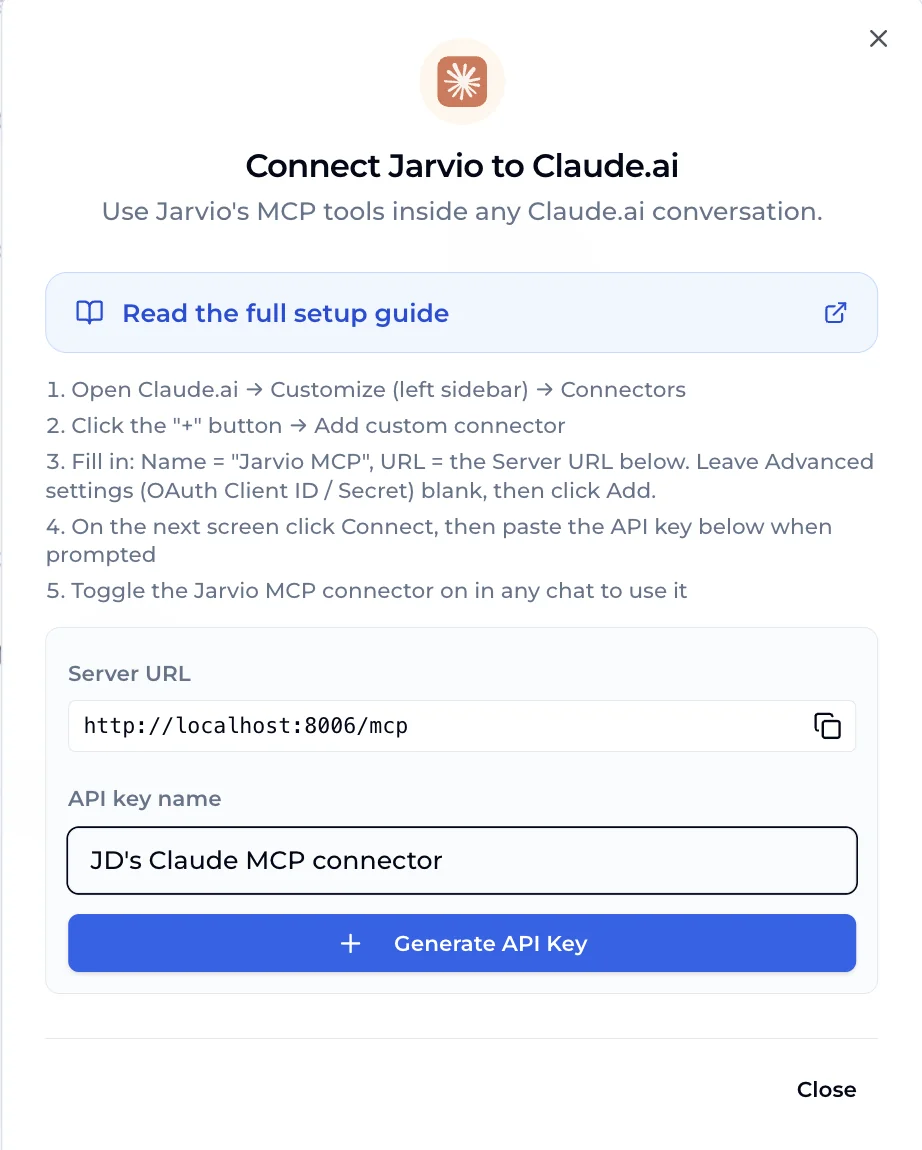
jrv_… token into Claude's connector form when prompted.Copy the API key right now. Jarvio only shows it once. If you lose it, generate a new one — old keys can be revoked from Settings → MCP.
Step 2 — Add Jarvio as a Custom Connector in Claude.ai
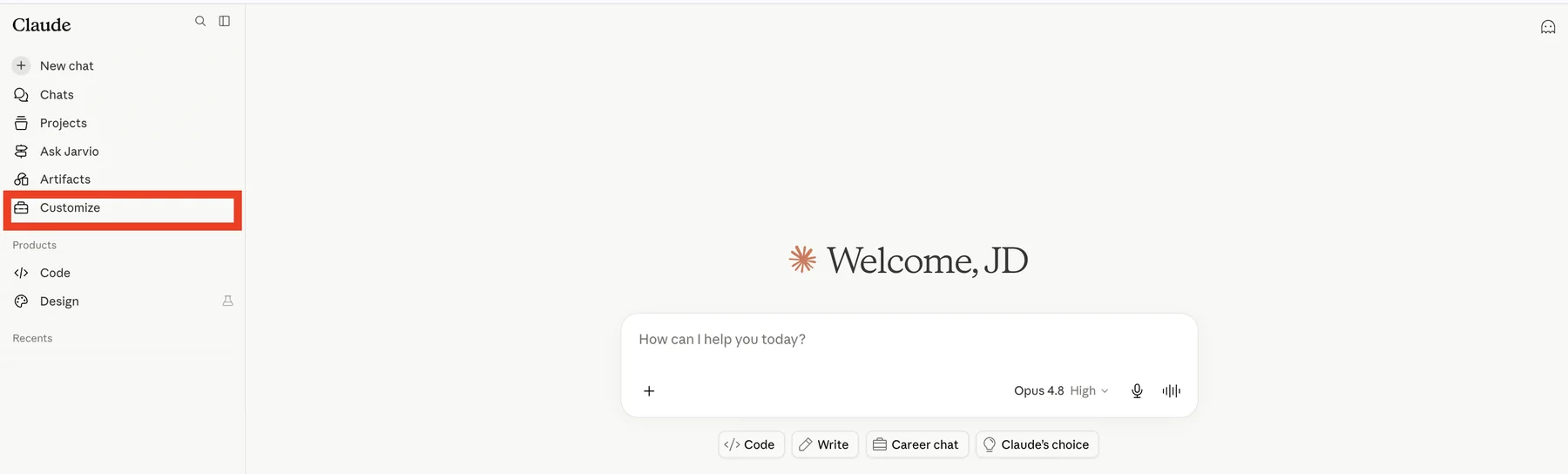
Custom connectors live under Customize → Connectors in the Claude.ai sidebar (Anthropic recently moved them here — if you land on the old Settings → Connectors screen, you'll see a banner saying "Connectors have moved to Customize"). Once added, the connector is available across every conversation on your account — you enable it per-chat in Step 4.
- In the Claude.ai left sidebar, click Customize.
- Open the Connectors tab (or go straight to
claude.ai/customize/connectors). - Click the + button at the top-right of the Connectors panel, then choose Add custom connector.
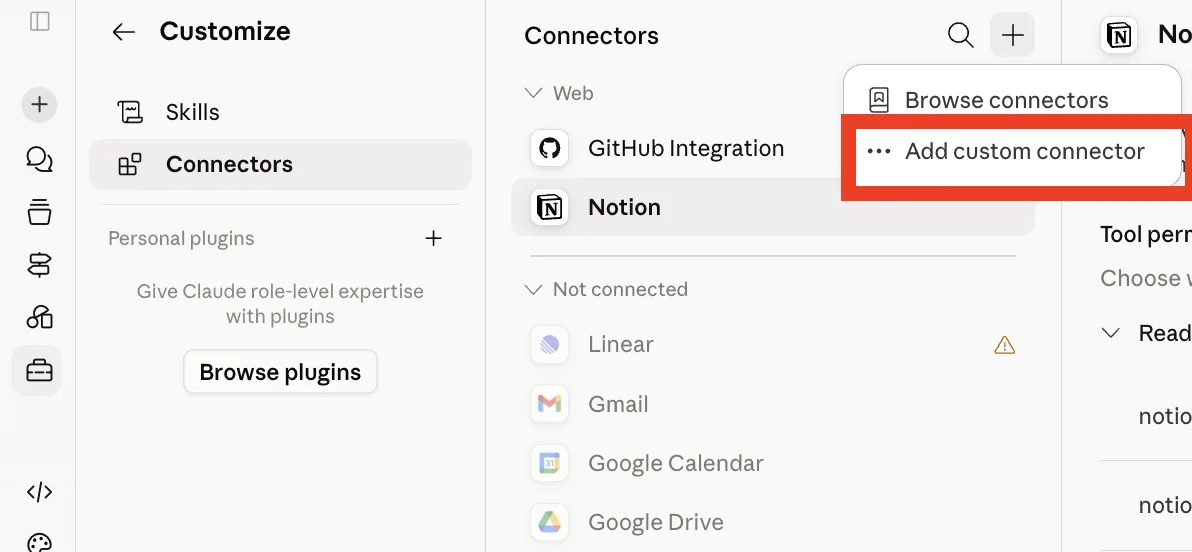
In the dialog Claude opens:
- Name:
Jarvio MCP— how the connector appears in Claude's tools menu. - URL:
https://2api.jarvio.io/mcp - Advanced settings (OAuth Client ID / Client Secret): leave both blank. Jarvio doesn't require pre-registered OAuth client credentials — you'll authenticate with your API key in Step 3.
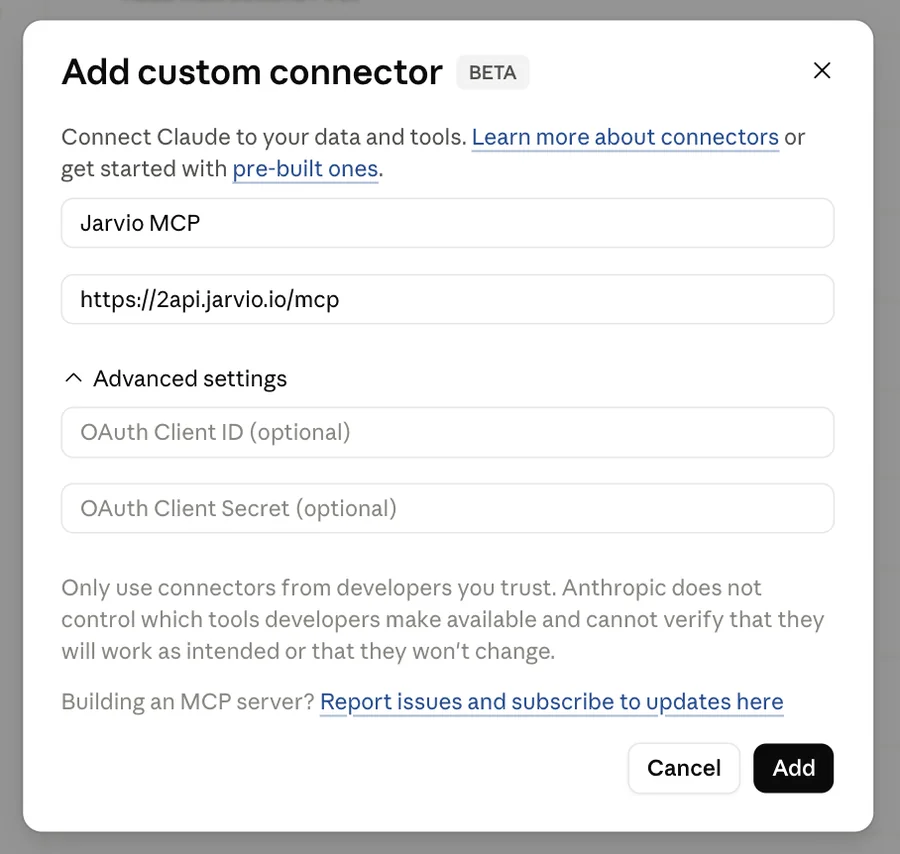
Click Add. The connector is saved but not yet authenticated — Claude shows a "not connected yet" screen with a Connect button. That's Step 3.
Step 3 — Click Connect and provide your Jarvio API key
The connector exists; now you authenticate it. Adding the connector just registers the URL — Claude still needs a Bearer token to call Jarvio's MCP tools, and that's where the API key from Step 1 comes in.
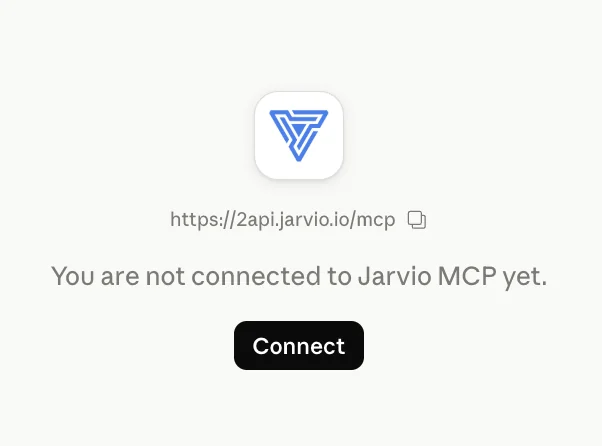
- Click Connect.
- When prompted for an API key, paste the
jrv_…key you copied in Step 1. - Confirm. Claude validates the key against the Jarvio MCP server and pulls the tool list.
The connector's status flips to Connected and you should see 40+ MCP tools available.
Revoking access: revoke the API key from Jarvio's Settings → MCP page (the connector stops working immediately) or remove the connector entirely from Claude's Customize → Connectors. Either side tears down the connection.
Step 4 — Enable the connector in a chat
Connectors are opt-in per conversation. Connecting the connector in Step 3 makes it available; you still need to toggle it on in any chat where you want Claude to use it. This is by design — Claude treats connectors as opt-in so you control which tools any given chat has access to.
- Open a new chat or any existing one.
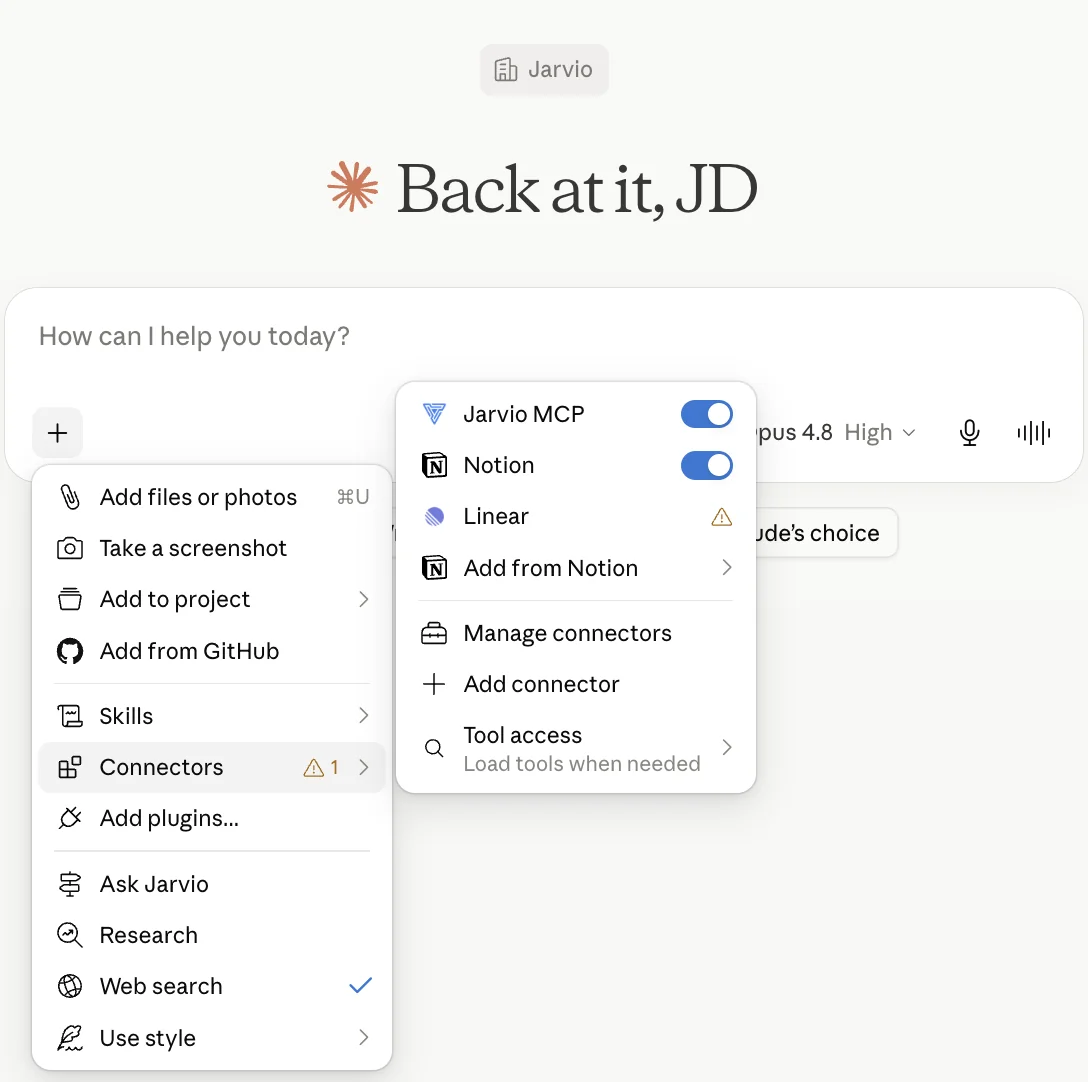
- Click the + icon in the chat composer, then choose Connectors.
- Toggle Jarvio MCP on. Claude shows the active connectors above the composer's "+" menu.
Step 5 — Use Jarvio inside Claude
With the connector enabled, just ask. Claude picks the right Jarvio MCP tool, calls it over the authenticated connection, and answers in the chat with the tool's results expanded inline.
What it looks like in practice
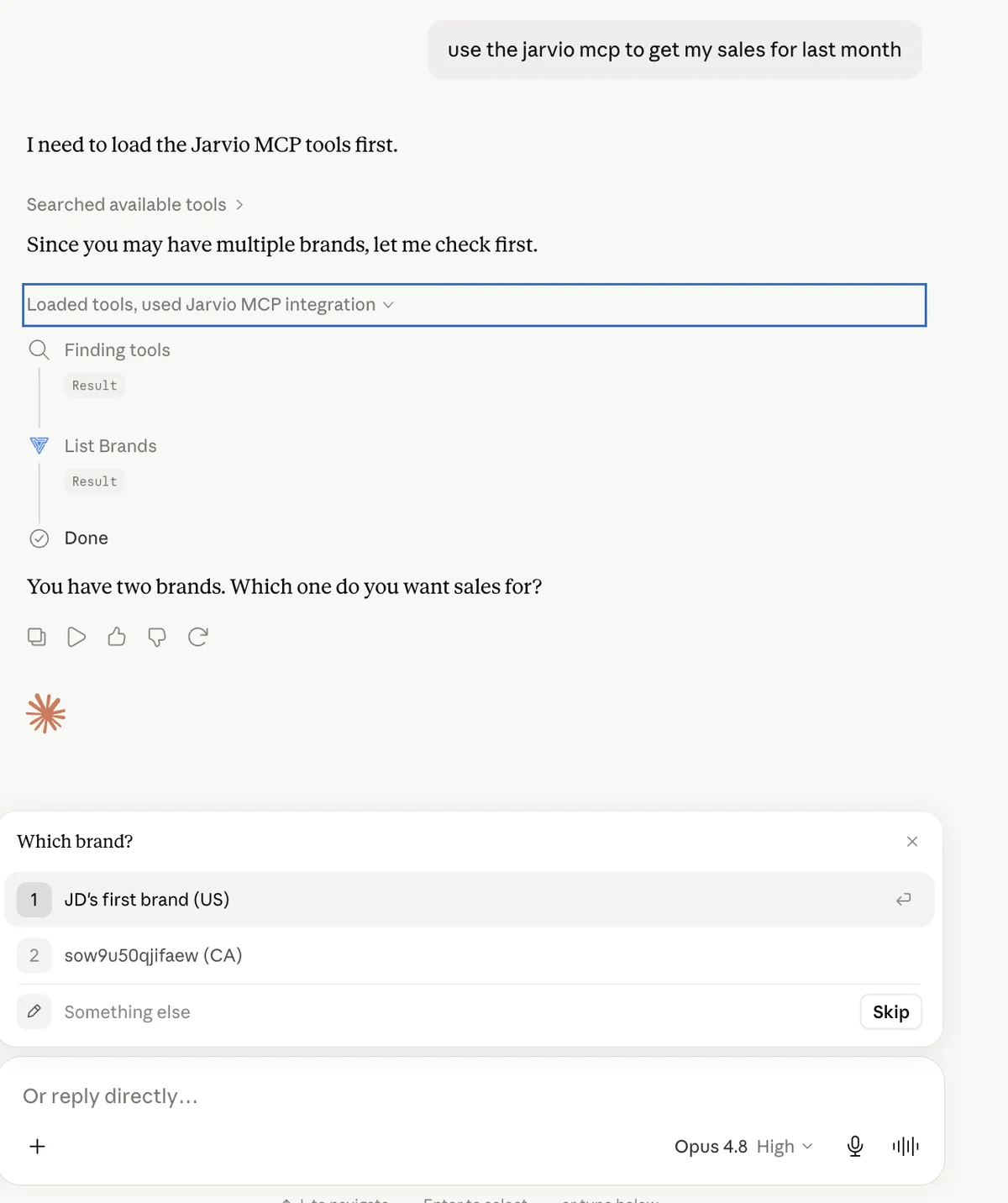
Ask Claude something like "use the Jarvio MCP to get my sales for last month" or "pull my top 10 ASINs by units for the last 30 days." On the first call, Claude loads Jarvio's tool list (Loaded tools, used Jarvio MCP integration), calls list_brands if you have more than one Amazon brand connected, then runs the right report against the brand you pick.
Multi-brand picker: if your Jarvio account has more than one brand connected, Claude will surface an interactive picker ("Which brand?") before running any data tool. Pick a brand and Claude scopes the rest of the conversation to it. If you only have one brand, this step is silent.
Helpful prompt patterns
- Be explicit about timeframes: "last 30 days", "May 2026", "year-to-date". MCP tools accept date ranges; vague time references force Claude to guess.
- Name the marketplace if you sell in more than one: "US marketplace", "UK marketplace", etc.
- Ask for the metric, not the report: "show me top 10 ASINs by sales" beats "pull the sales report" — Claude picks the right tool either way, but the former gets you the answer faster.
What Jarvio tools become available in Claude?
The Jarvio MCP server exposes 40+ tools. Once connected, Claude can call any of them in a conversation. Categories include:
- Seller Central reports — Sales & Traffic, business reports, inventory health, listing reports, order data, financial reports
- Amazon Advertising — Sponsored Products / Brands / Display performance, search-term reports, keyword reports, placement breakdowns
- Product intelligence — ASIN lookups, Keepa price & BSR history, Buy Box analysis, niche analysis, Rufus questions
- Keyword research — JungleScout metrics, search volume, share of voice, reverse-ASIN lookups, sales estimator
- Scraping — product detail pages, search results, reviews, offers, seller profiles, arbitrary webpages
- Workflow automation — list and run Jarvio flows directly from Claude
You don't need to memorise tool names — Claude reads the tool descriptions on connect and picks the right one based on your question. Ask in plain English.
Where else can I use Jarvio's MCP server?
The same Jarvio MCP server URL and API key work with any compliant MCP client.
| Client | Setup type | Guide |
|---|---|---|
| Claude.ai | UI — Custom connector (paste API key) | This guide |
| Notion | UI — Custom Agent connection (Bearer) | Notion guide |
| Claude Code (CLI) | Plugin (claude plugin install jarvio) |
Claude Code guide |
| Cursor | JSON config (~/.cursor/mcp.json) |
From the Jarvio MCP dialog → Cursor tab |
| Claude Desktop | JSON config + mcp-remote bridge | From the Jarvio MCP dialog → Claude Desktop tab |
| Other MCP clients | Streamable HTTP + Authorization: Bearer <key> |
Any MCP-compliant client |
Sharing with your team
Claude's custom connectors are scoped to your individual Claude account — each teammate adds the connector once on their own profile. If you want everyone hitting the same Jarvio brand, give them the same Jarvio API key; if you want per-user isolation, give each their own key. Anyone who has the key effectively has access to whichever Jarvio brand it's scoped to, so revoke keys promptly when teammates leave.
Troubleshooting
| Symptom | What to check |
|---|---|
| "Add custom connector" option doesn't appear | You're on the free plan, or your workspace owner has disabled connectors. Upgrade or ask your admin. |
| Stuck on "Connectors have moved to Customize" | Anthropic relocated the page — go to claude.ai/customize/connectors. |
| "You are not connected to Jarvio MCP yet" stays even after clicking Connect | The API key Claude received was rejected. Generate a new jrv_… key in Jarvio's MCP page and retry. |
| Claude shows a 401 / "Unauthorized" | Token typo or revoked key. Generate a new one — they're disposable. |
| Claude shows a 404 / "Not found" | URL is missing /mcp at the end, or you pasted the dashboard URL instead. Edit the connector and fix the URL. |
| Connector saves but no tools appear | Token is from a brand with no integrations connected yet — connect at least one in Jarvio first. |
| Tools available but Claude won't call them | Check the connector is toggled on for the current chat (Step 4). Connectors are per-conversation, not global. |
Sources & verification
Verified against the live Jarvio MCP server at https://2api.jarvio.io/mcp and Claude.ai's custom-connectors UI (beta) on by the Jarvio team. Claude.ai's connector UI evolves quickly — if you see different labels than we describe, let us know via the contact form at the bottom of this page; we update this post regularly.
- Anthropic — Claude support docs
- Anthropic — Claude pricing & plan matrix
- Model Context Protocol — specification & transports
- Jarvio — Connect Jarvio to Notion via custom MCP
- Jarvio — Build an Amazon AI agent with Claude Code
Frequently asked questions
Can Claude.ai connect to Jarvio?
How does Claude.ai authenticate with Jarvio?
Do I need to generate a Jarvio API key for Claude.ai?
How long does the Jarvio-Claude setup take?
Which Claude plan do I need for custom MCP connectors?
Is the Jarvio-Claude connection secure?
What Amazon data can Claude pull through Jarvio's MCP server?
What happens if I lose my Jarvio API key?
Does Jarvio see what I do inside Claude.ai?

Ready to automate your Amazon operations?
Start 14-day free trialRelated articles
Connect Jarvio to Notion: Amazon Workflows in Notion AI
Notion supports custom MCP servers — which means Jarvio's tools become available inside Notion via a Custom Agent. Here's the 5-minute setup, with the gotchas we hit so you don't have to.
AutomationHow to Build an Amazon AI Agent with Claude (2026 Guide)
Want to build your own Amazon AI agent with Claude? Here's the architecture, the APIs, the edge cases, and the shortcut most sellers take instead.
AutomationWhat is an Amazon AI Agent? How It Works
Learn what an Amazon AI agent is, how it's different from dashboards and generic automation tools, and why it's becoming the new way sellers manage their operations.